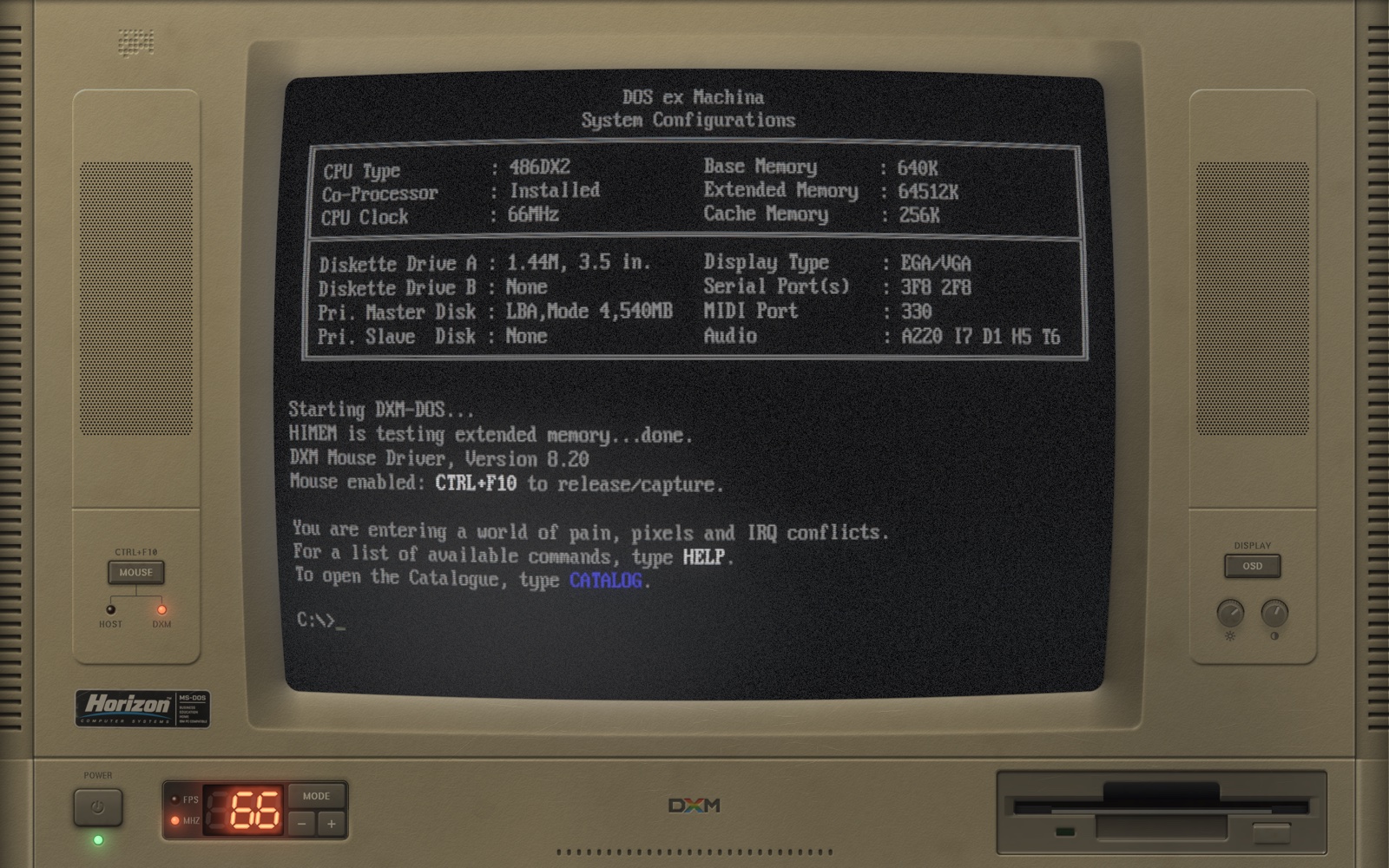
DOSBox runs DOS. DOS ex Machina is the machine it runs in: the case, the tube, the drive that spins when a program loads, the power switch. DOSBox's picture goes through the same CRT pipeline the machine draws its own POST with, and the handover between the two is invisible: the BIOS clears its first screen, and the second one, the system configuration, is drawn by DOSBox itself, with DOS's prompt coming up under it in the same VGA font.
Part No. 2A4KD000C-0010 chaptersKeep this guide near the machine
1
Installing a build
There are no releases yet. The builds CI produces, and the releases to come, are self-contained: unpack and run. The DOSBox core travels inside.
On macOS it is a DOS ex Machina.app bundle. It is ad-hoc signed rather than notarised, so the first launch needs right-click → Open; double-clicking will refuse it. If it still balks, System Settings → Privacy and Security → General has an Open Anyway button.
On Windows, unzip and run dxm.exe. Everything it needs is in the same folder and nothing has to be installed. The executable is unsigned, so SmartScreen shows "Windows protected your PC" the first time: More info → Run anyway.
On Linux the tarball runs from wherever you unpack it: ./dxm. If you want it in your applications menu, ./install.sh puts it under ~/.local, writes a desktop entry and installs the icon. It needs no root, touches nothing system-wide, does not modify your shell configuration or PATH, and prints exactly what to delete to undo it.
2
Your C: drive
The machine has its own C: drive, a folder in its preferences directory, created the first time it runs:
Platform
C: is
macOS
~/Library/Application Support/DOSexMachina/dxm/C
Windows
%APPDATA%\DOSexMachina\dxm\C
Linux
~/.local/share/DOSexMachina/dxm/C
Put your DOS software in it, as folders, the way it sat on a hard disk. The machine writes one file there, DOSBOX.BAT, which DOSBox runs at boot to print the greeting under the BIOS's second screen. Replace it with your own and the machine leaves it alone.
Above the greeting is a message of the day, drawn afresh at each boot. Put a MOTD.TXT in the root of C:, one message a line, and the machine reads yours instead of its own; a line starting with ; is a comment.
--dosbox DIR mounts another folder as C: instead, and so does the DXM_DOSBOX environment variable.
No software comes with it. Plenty of DOS software was released as freeware by its authors, and their own sites are the place to get it; the catalogue knows a few.
MIDI. For a Roland MT-32 or a Sound Canvas SC-55, put the ROM files in the root of C:: MT32_CONTROL.ROM and MT32_PCM.ROM for the MT-32, the .BIN set for the SC-55. SETUP's Sound section lists whichever it finds and lets you pick one, or none; set the program's music to General MIDI or Roland to hear it. The SC-55 is worth knowing about before switching on: it emulates the module's own processor continuously, so it costs the same whether anything is playing or not.
3
The machine
Fullscreen is real fullscreen: the case fills the display edge to edge with no background around it. Extra width becomes more machine, never letterboxing.
Figure 1The second BIOS screen, drawn by DOSBox itself, and DOS coming up under it.
The machine powers on, degausses, warms up and runs its POST. By the time the memory count is done, DOSBox has booted behind it; the screen clears, the system configuration comes up, the drive runs, and the DOS prompt arrives under it. EXIT, or pressing and letting go of the power button with the mouse released, powers the machine down properly: the raster collapses, the fans spin down, and the room goes dark.
The mouse belongs to the machine: no pointer over the glass, and a DOS program that uses a mouse gets it. Ctrl+F10 gives it back to your operating system, where it wears a period arrow and can work the controls on the case, and takes it back again. On a Mac, a tap of Command on its own does the same. Under the left speaker's holes, two lamps, HOST and DXM, say which has it, and the MOUSE key over them gives it to the machine.
The keyboard goes with the mouse. While the machine has the mouse your desktop's own shortcuts are off – switching spaces, showing the desktop, cycling windows – so Ctrl with the arrows moves a word in a DOS editor instead of moving you to another desktop. They are back the moment the mouse is, or the window loses the focus.
The keyboard layout is the one you already have: the machine reads what your keys produce and gives DOS the matching national layout, so a Portuguese board types ç at the prompt and a French one is AZERTY. It is a guess from a handful of keys, and an unfamiliar board falls back to US; --keyboard CODE (or DXM_KEYBOARD) forces one — us, uk, fr, gr, it, sp, po, br, sv, dk, no and the rest of DOSBox's set. The log says which it chose.
The keyboard sounds like one. Every key you press is heard going down, the way a mechanical board of the day sounded: one of a handful of strokes cut from a recording of real typing, never the same one twice running, and a little higher or lower, harder or softer, each time. A key held down is heard once. It is every key, whatever it is for – DOS, SETUP, CATALOG, the OSD. SETUP's KEYBOARD section sets it Off, Low, Medium or High; it comes at Medium.
4
The controls on the case
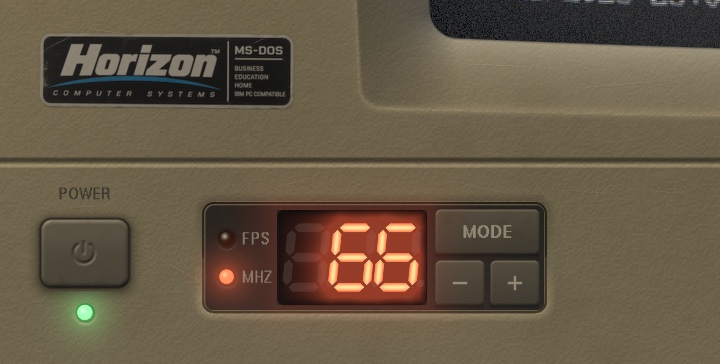
The power button switches the machine off, with the mouse released.
Figure 2The power button and its lamp, and the turbo display with MODE, minus and plus.
The turbo display beside it shows the CPU clock in MHz. Its − and + buttons step the machine through its processors, from a 486DX at 33 MHz through the 486DX2 and DX4 to the Pentium-S at 100, 133 and 166 and the Pentium-MMX at 200 and 233, each setting DOSBox's speed to roughly what that chip did; the 486DX2 at 66 is the default. The chip is kept between runs, can also be chosen in SETUP's MACHINE section, and is what the POST prints as the CPU type and clock. A game that paces itself by the clock plays the same at any of them, and anything that runs flat out shows the difference. MODE switches the display to the frames per second the machine is drawing.
The OSD key on the right speaker opens the monitor's on-screen display, and a second press closes it.
The two knobs under it are brightness and contrast: grab one and drag up or down.
The MOUSE key on the left speaker gives the mouse to the machine.
5
SETUP
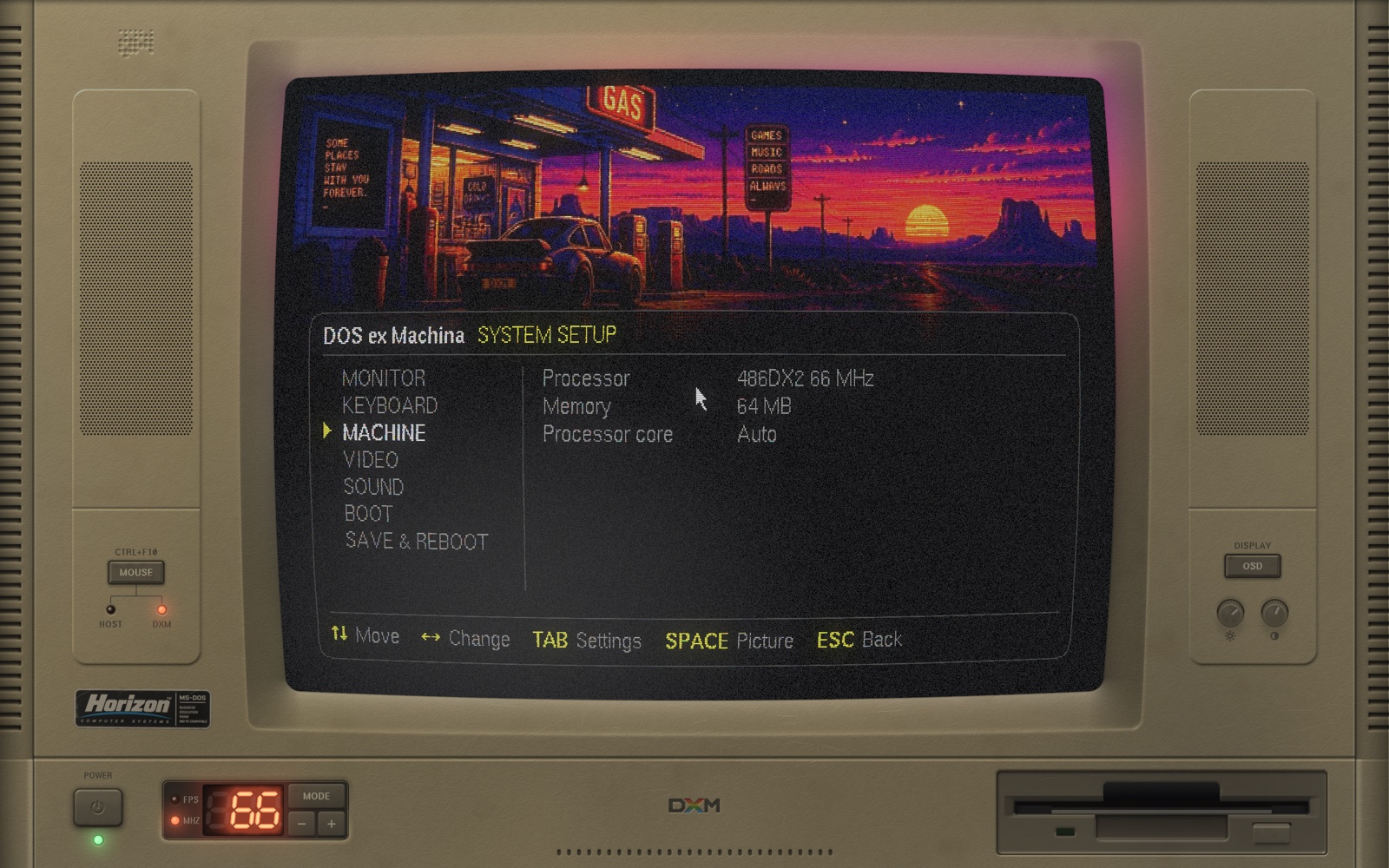
The machine's own configuration screen, in 640x400 and 256 colours with a piece of artwork across the top. Press SPACE while the POST is on screen, as it says, or type SETUP at the DOS prompt. Arrows move, TAB crosses to the settings and back, SPACE changes the picture, ESC steps out.
Figure 3SETUP, on MACHINE: the processor, the memory and the processor core.
It holds the tube's own settings, which move as you drag them; the keyboard layout, and how loud its keys are; which processor the machine is, how much memory it has and which processor core runs it; the 3dfx card; which MIDI device answers the MPU-401; and where the boot ends up. Only the tube and the keys' sound are live – everything else is read as the machine starts, which is why the way out is SAVE & REBOOT: it keeps both files and starts the machine again so they take effect. Machine settings live in dxm.cfg beside the preferences, the tube's in crt.cfg.
6
CATALOG
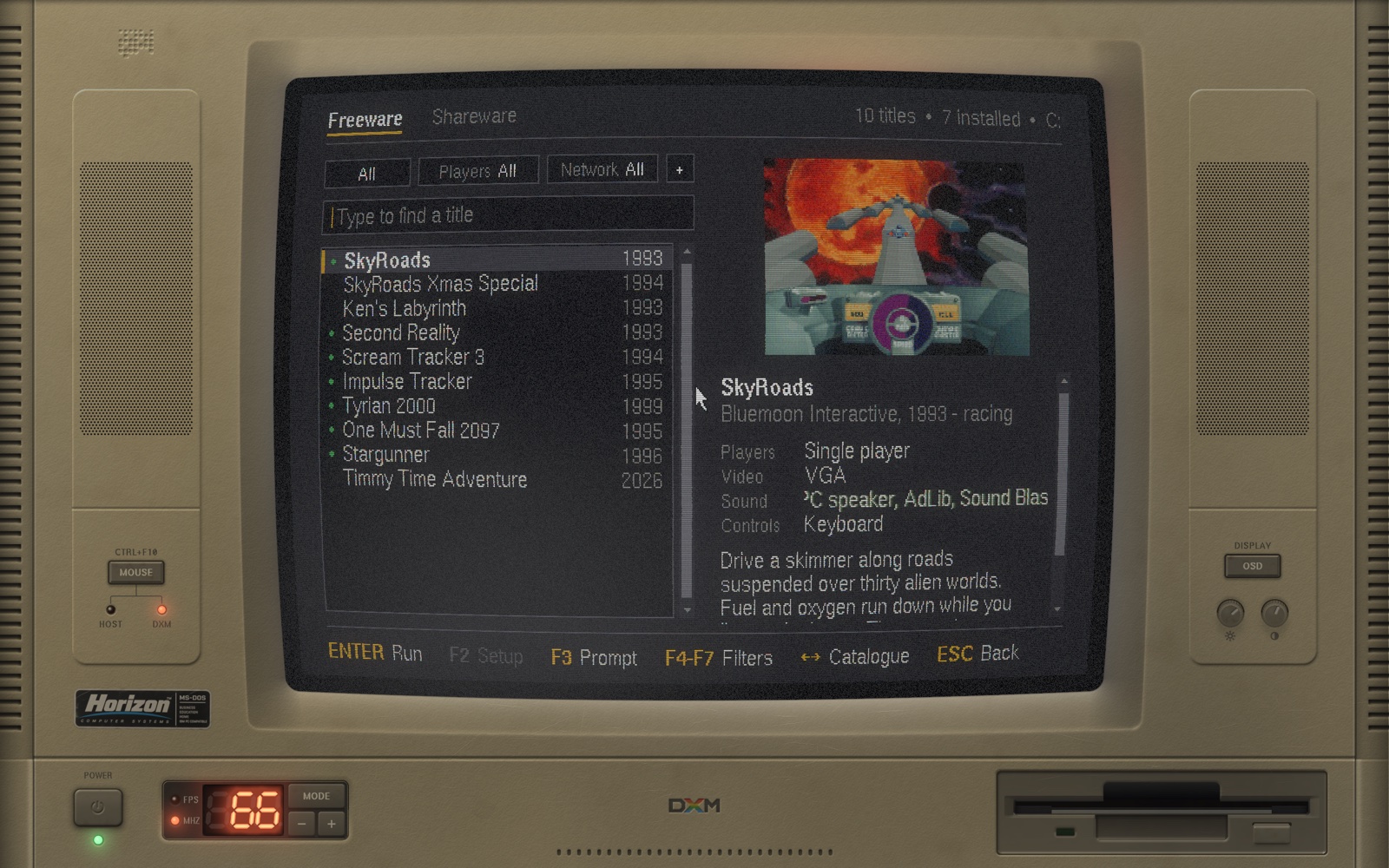
The shop: type CATALOG at the DOS prompt. Each catalogue is a tab with its titles in a list. Just type to find one: the list narrows as you go.
Figure 4CATALOG. The dot beside a title says it is installed.
A catalogue is a list, not a drive. It owns no part of your disk and takes no drive letter; it says what a title is, and where each one ended up on this machine is kept separately, in installed.cfg in the preferences.
Enter, or a double-click, runs the chosen title once it is there, and otherwise installs it. A title in a Disk catalogue that has not been pointed at anything has nothing to install from, and says so. Installing asks where first, with C:\DXM\<CATALOGUE>\<CATEGORY>\<ID> filled in; Enter again accepts it, or type somewhere else. The download is checked against the size and hash the catalogue names before anything is unpacked.
F2 runs the title's own setup program when it has one.
F3 drops you at a DOS prompt in its directory; EXIT comes back.
F8 opens the editor, below.
Left and Right change catalogue.
Esc clears the search, then leaves.
The key hints along the foot do the same when clicked. Running, setting up and the prompt are errands: the catalogue is back as you left it when they return. A title with no artwork gets a plate the machine draws itself, with a mark on it for its category. Artwork that a catalogue does name is fetched as a title is looked at and kept in artwork/ in the preferences, so the shelf works offline afterwards. Every title in the bundled catalogues is freeware or shareware from its author's own site; the machine carries none of it.
Putting your own things on a shelf
F8 opens a menu over the catalogue on screen: add a title, change the one under the cursor, say where it is, take it out, make a catalogue of your own, reset one, or delete one. Every removal asks first, and takes the title out of the list only — whatever it installed stays where it is.
A catalogue you make says, once, what kind of titles it holds — and that is the whole of the difference between the two:
Titles come from
What is in it
Internet
Each title names an address and the sha256 it must turn out to be. The file means the same thing on any machine, so it is one you can pass on.
Disk
Things already on this computer — unpacked from an archive you have, or a folder you point at. Where each one sits is this machine's business, so none of it goes in the file.
Adding to an Internet catalogue is a form: the address, the hash and the size are what such a title is.
Adding to a Disk catalogue is a sequence, because almost none of it needs typing. It asks which way in — an archive on this computer, or something already on a drive — then for the archive, or the folder. For an archive it asks where it goes, with C:\DXM\<CATALOGUE>\<CATEGORY>\<ID> filled in and a category to pick, and unpacks it there. Either way the machine then reads the folder and works out the id, a name, what to run and what sets it up, and only then shows you the form, with all of that already in it to correct.
Run and Setup can be picked as well as typed: Enter on either row lists the programs in the title's folder, with where each one sits, so choosing one in a subfolder says both what to run and where to run it.
A title is held to the same rules either way: the editor will not save what the reader would have thrown away, and says which rule is unmet. A path is refused if DOS could not reach every step of it, naming the step and what DOS would have looked for instead.
The machine's own file browser opens wherever a file or a folder is wanted — .. first, folders before files, <DIR> where a size would go, and a letter typed jumping to the next name that starts with it. No dialog of the host's ever appears.
The catalogues that ship with the machine are never written to. They live inside the application, which on macOS is signed over its own contents, and changing a file in there would stop the machine starting. Editing one instead writes a whole copy into your preferences directory, as catalogues/<ID>.cat, and that copy is what loads from then on. It is an ordinary catalogue file — the same JSON a curator writes — so you can open it in a text editor or send it to somebody. Reset this catalogue throws your copy away and the one that shipped comes back. Catalogues you made yourself have no original underneath, so those are deleted rather than reset; what is on the drive is left alone either way.
The machine deletes only what it made, inside its own preferences folder. Its scratch directories and the archives it downloaded itself, and nothing else — never a file on your computer, never anything on a drive. Taking a title out of a catalogue takes it out of the list; whatever it installed stays where it is.
7
The OSD
From the OSD key, or Shift+F1 anywhere: the monitor's own display on the glass, over the lower half of the picture. Every CRT setting, on three pages – PICTURE, GEOMETRY and TUBE. The arrows choose and adjust one step at a time (Shift for ten), TAB changes page, ESC puts it away, and every other key still reaches DOS. Everything saves to crt.cfg in the preferences directory.
8
The log
Every run writes dxm.log to the preferences directory, one folder up from C:, with a timestamp for each startup step, the GL driver in use and what DOSBox reports. If something goes wrong, that file is the bug report.
9
Command-line flags
Flag
--windowed, --size WxH
a window instead of fullscreen, and its size
--dosbox DIR
mount another folder as C: (also DXM_DOSBOX)
--dosbox-core PATH
use another DOSBox Pure core (also DXM_DOSBOX_CORE)
--keyboard CODE
force a DOS keyboard layout (also DXM_KEYBOARD)
--setup, --catalog
come up in SETUP, or in CATALOG
--type "CMD;CMD"
type commands at the DOS prompt, one a second
--shot out.bmp --frames N
write a screenshot after N frames and quit
--deterministic
a fixed 60 Hz clock and the shipped CRT defaults, so a given frame is the same picture on every run; reads and writes no settings
--ambient N
the room's light
--dump-audio FILE
write the audio to a file
10
Known gaps
Unsigned. Code-signing certificates carry a yearly fee to each platform's authority, so macOS and Windows each show a first-run warning; see Installing a build for the way through it.
The drive LED is a guess. The floppy runs when a program starts or ends, judged by the picture changing mode, not by the emulated drive.
One drive. The machine mounts C: and nothing else. A catalogue no longer brings a drive with it, and SETUP does not yet offer to mount a folder as another letter, so everything installs under C:. CD-ROM and floppy images have to be mounted by hand from DOS for now.